
Freezing Interactive Media Plans
Overview
Interactive Media Plans\Schedules can be frozen in the Campaign Management screen within the SBMS Buy Options section. Freezing the Media Plan saves a copy of the finalized order so the history can be referenced once adjustments have been made to the schedule.
Freezing Media Plans
From the Buy Options section, open the Campaign Management screen.
Filter Media Plans:
- Select the Agency and Office.
- Optionally, select any combination of the Estimate, Campaign, Client, Product, Media, Publisher or Schedule Date Range. Note: The information in the optional filters can be multi-selected.
- Choose the Search button.
To Freeze Media Plans
- Select the Totals Only option from the top of the Campaign Management screen.
- Check the orders that are to be frozen. Optionally, choose the Select All option from the Media Plans menu.
- Choose the Freeze Media Plans button.
.
- The Freeze Date column will populate with the date the order was frozen and Freeze Buyer column will populate with the username of the user who froze the order. These columns are accessible within the Totals View tab of the Show\Hide Columns screen under the Media Plans menu.
Printing a Frozen Media Plan
- From the Report Options section, expand Schedules, Estimates and Goals and open the Order Report.
Note: The Order Report is also accessible from the Campaign Management screen under the Reports menu.
- Select the Estimate and optionally choose the Publisher.
- Select the Frozen Schedule Only option.
- Choose the Print Preview or Print button.
Notes on Freezing Media Plans
- Only Approved, Revised or Billed orders can be Frozen.
- Only one Frozen Media Plan is saved in SBMS. Re-freezing the Media Plan will override the previously frozen Media Plan.
Client Activity Report
The Client Activity Report will display the Interactive Media Plan Frozen costs. It also can be used to compare the Frozen vs. Purchased vs. Invoiced costs.
- From the Report Options section, expand Client and Financial Summaries and open the Client Activity Report.
- Select the Agency and Office. Optionally, choose from the other filters available.
- From the Layout Options tab, select Frozen under the Display Banner.
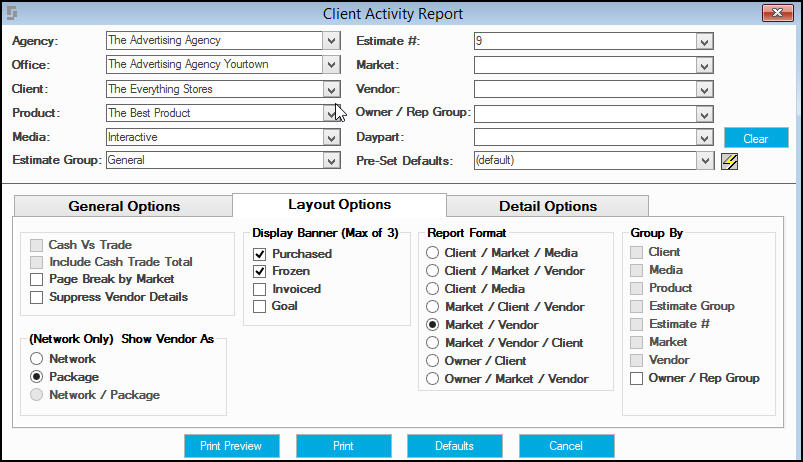
- Choose the Print Preview or Print button.
Client Activity Report Purchased/Frozen Example:
0 Comments